


Last Updated: November 17, 2026
Quick Summary
An ergonomic desk setup for seniors starts with the chair: set the seat height so your feet rest flat on the floor and your knees sit level with your hips, adding a footrest if your feet dangle. Then place the top of the screen at or just below eye level, an arm's length away, and keep your keyboard and mouse close with elbows at your sides and wrists straight.
- Keep the monitor roughly 50 to 70 cm from your face and tilt it back slightly to reduce glare.
- Raise a sit-stand desk until your elbows sit at roughly a right angle with forearms parallel to the floor.
- Start with short standing spells of five to ten minutes at a time and build up gradually.
- Keep a clear 80 to 90 cm behind the chair if you walk unaided, so you can step back safely.
- Take a stand-and-stretch break every 30 to 45 minutes rather than working in long unbroken sessions.
Table of Contents
- What You'll Need Before You Start
- Step 1: Set Your Chair Height and Support Correct Sitting Posture at a Desk
- Step 2: Position Your Monitor Height for Desk Ergonomics
- Step 3: Get Your Keyboard and Mouse Positioning Right
- Step 4: Choose and Adjust a Sit-Stand Desk for Seniors
- Ergonomic Principles for Ageing Joints, Vision and Mobility
- Your Workstation Adjustment Checklist
- Talk to Our Team About the Right Setup for You
- Frequently Asked Questions
What You'll Need Before You Start
An ergonomic desk setup for seniors starts with a few practical checks, not a shopping list. The goal is a workstation that fits your body today, so you can sit and work without strain.
Before you adjust anything, gather these basics:
- A chair with adjustable seat height and a supportive back
- A footrest if your feet don't reach the floor comfortably
- A monitor stand or arm to raise the screen
- A separate keyboard and mouse
- A tape measure and a helper for the heavier adjustments
Clear the space around your desk first. You need room to move your chair and to stand up safely. Good lighting helps too, especially if your eyes tire easily.
Step 1: Set Your Chair Height and Support Correct Sitting Posture at a Desk
Correct sitting posture at a desk begins with the chair. Set the seat height so your feet rest flat on the floor and your knees sit level with your hips.
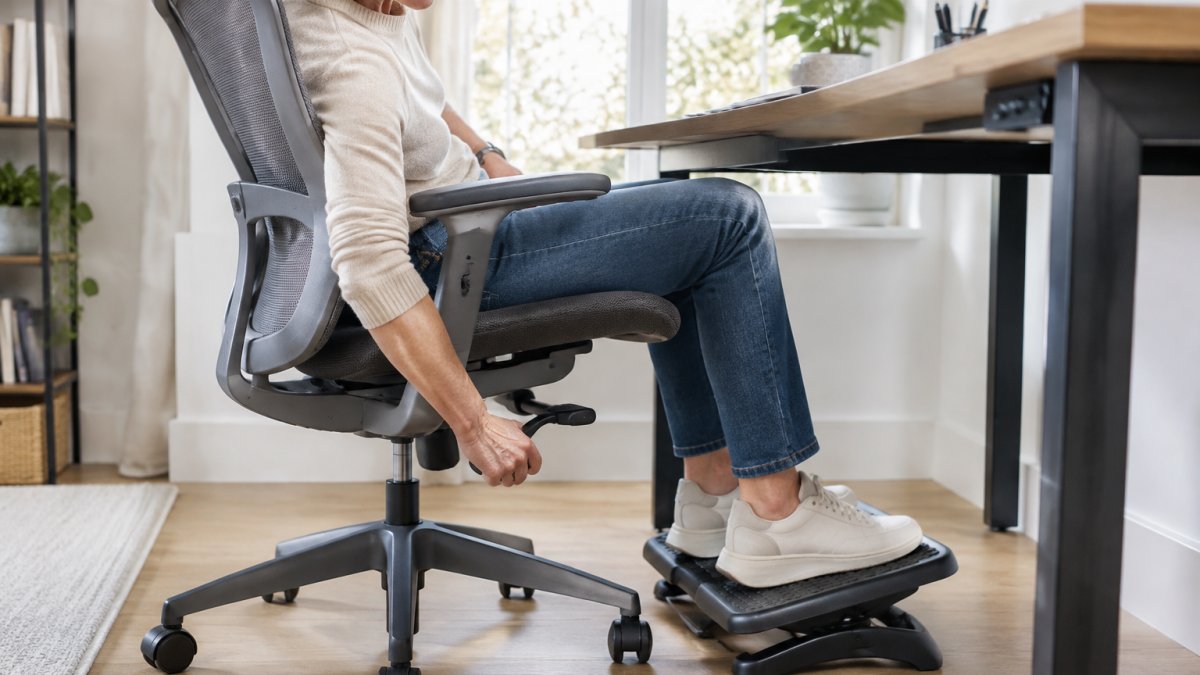
Sit back against the chair so the backrest supports your lower spine.
A well-fitted chair helps you sit comfortably. The Lavoro Design Storr Ergonomic Mesh Task Chair has a sliding seat and twin lumbar pads, so you can set it up to suit your body.
Step 2: Position Your Monitor Height for Desk Ergonomics
Monitor height for desk ergonomics means placing the top of the screen at or just below eye level (Working safely with display screen equipment).
Keep the monitor an arm's length away, roughly 50 to 70 cm from your face. Tilt it back slightly to reduce glare.
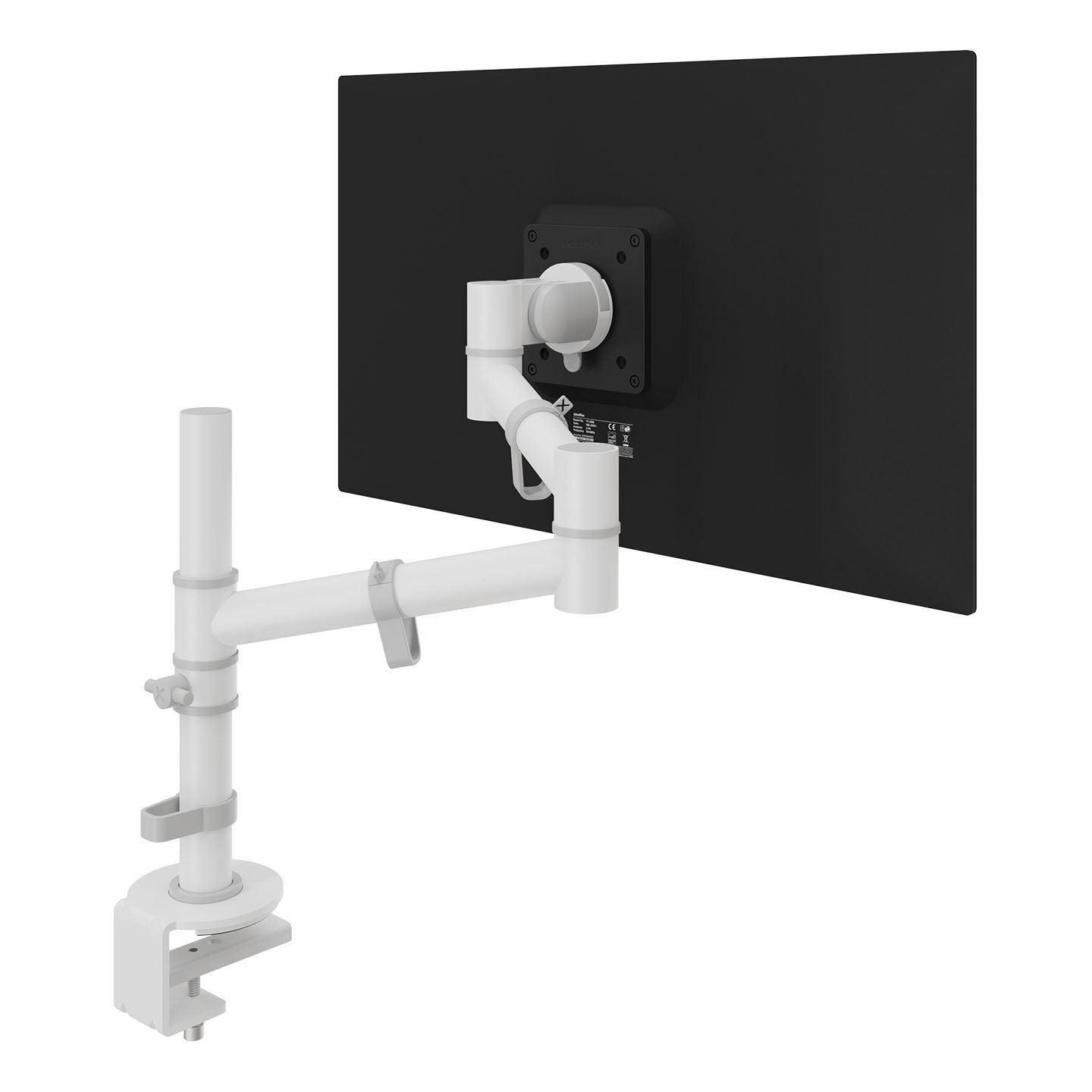
A monitor arm makes fine-tuning simple. The Dataflex Viewgo Single Monitor Arm offers a static height adjustment of 210 mm and independent depth adjustment, so you can avoid stacking books under the screen.
Step 3: Get Your Keyboard and Mouse Positioning Right
Keyboard and mouse positioning should keep your elbows close to your sides and your wrists straight. Your forearms should run roughly parallel to the floor, with your shoulders relaxed.
Keep the keyboard and mouse close to your body, within easy reach. Stretch your arms out and pull everything within that zone.
For a deeper look at key layouts that ease hand strain, read the ergonomic keyboard guide.
Step 4: Choose and Adjust a Sit-Stand Desk for Seniors
A sit-stand desk lets you alternate between sitting and standing through the day. But the features that matter for a senior user are not always the ones the marketing leads with. Alongside choosing a desk that supports comfortable changes of position, consider how its height, screen and everyday essentials work together, with The Paper Drawer offering another perspective on the details that make a workspace practical.
What to look for
- A height range that suits you. Check the lowest and highest settings against your own seated and standing elbow heights, not just the headline range. If the desk will not go low enough for your chair, you will end up reaching up to the keyboard.
- Simple, large controls. A single rocker switch or a memory preset is easier on stiff hands than a small dial or a touch panel with tiny icons. Presets are especially useful if bending to read a display is awkward.
- Stability at standing height. A desk that wobbles when raised is a fall risk and a distraction. Look for a sturdy frame and check the manufacturer's stated load capacity against your equipment.
- Clearance underneath. If you use a wheelchair or rollator, or simply need room to swing your legs, check that the frame leaves a clear span and that any crossbar does not catch your knees.
- Anti-collision and soft-start. These stop the desk rising into a shelf and start movement gently, which is reassuring if you are unsteady on your feet.
Setting the standing height safely
Raise the desk until your elbows sit at roughly a right angle with your forearms parallel to the floor, then check that the top of the screen is still at or just below eye level.
Start with short standing spells, five to ten minutes at a time, and build up gradually. Keep a stool or chair within arm's reach so you can sit the moment you tire. Wear supportive, flat footwear rather than slippers, and keep the floor around the desk clear.
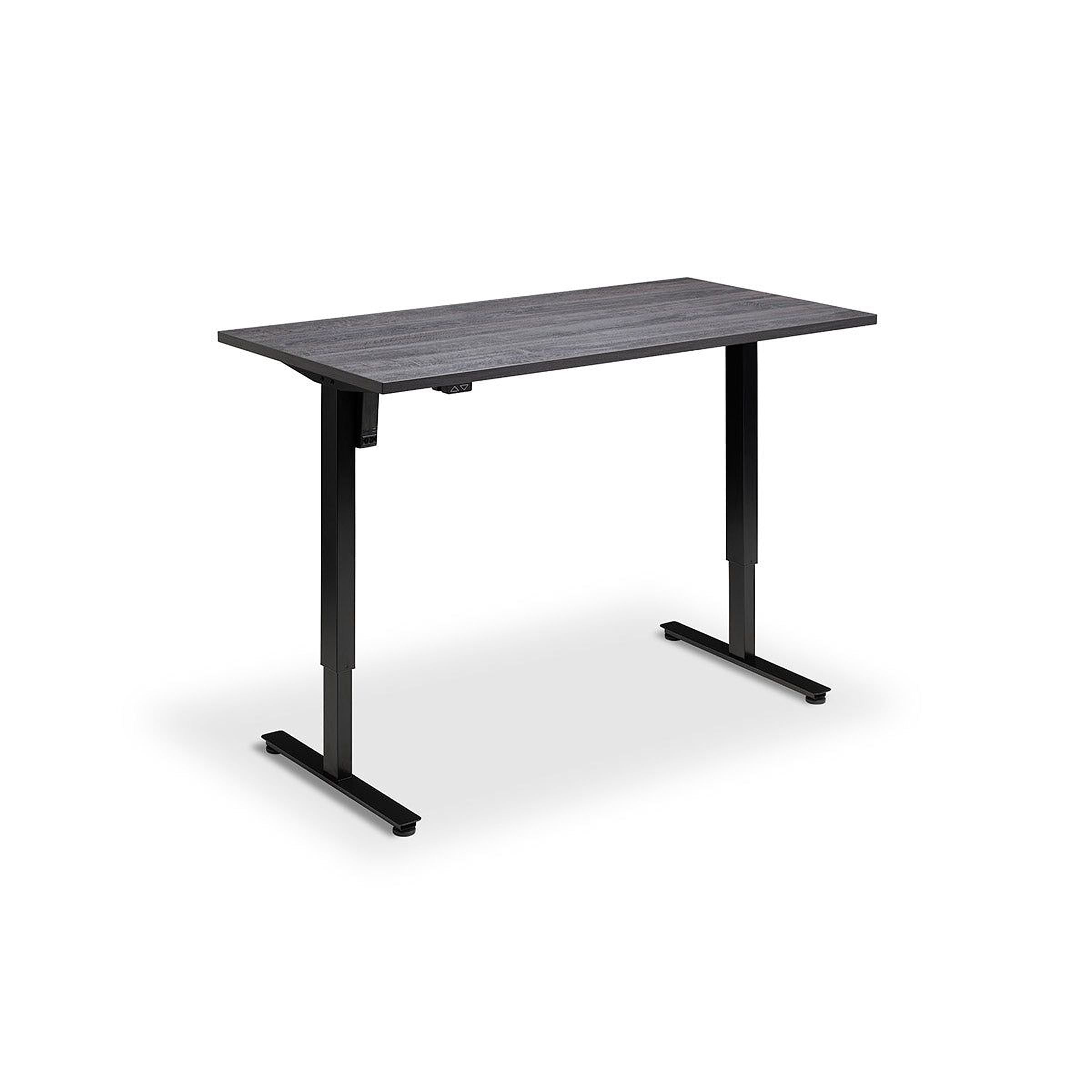
The Uno Standing Desk has a simple single-motor control and a height range of 725 - 1205mm, with a 7 year warranty on all components.
Ergonomic Principles for Ageing Joints, Vision and Mobility
A desk setup that works for a fit forty-year-old may not work for you, and that is not a failing on your part. Age-related changes in joints, vision, dexterity and balance each call for slightly different adjustments. Treat the points below as a menu rather than a rulebook, and adapt them to how your body feels on the day.
Adapting for different mobility levels
Seniors are not one group. Someone who walks unaided, someone who uses a stick and someone who uses a wheelchair or rollator need different clearances and access routes.
- Walking unaided: keep a clear 80 to 90 cm behind the chair so you can step back and turn without catching a heel.
- Using a stick or rollator: allow a wider turning circle at the desk entrance, and park the walking aid to one side so it does not become a trip hazard.
- Wheelchair or seated transfer: check that the desk frame and any crossbar leave enough knee clearance, and that the seat height matches your transfer height. A desk with a clear under-desk span and no central beam is easier to roll under.
- Reduced grip strength: favour levers, loop handles and large rocker switches over small twist dials. If a control is stiff, a short length of foam pipe insulation slipped over a lever gives extra purchase.
Vision and screen accessibility
Eyes change with age, and a screen that felt fine at 40 can feel tiring at 70. A few adjustments make a real difference:
- Increase text size at the operating-system level rather than leaning in. Most systems let you scale text and icons independently of screen resolution.
- Raise contrast, dark text on a light background, or the reverse if that suits you, and reduce glare by placing the screen side-on to a window rather than facing it.
- Add a task light that illuminates papers without bouncing light off the screen.
- If you wear varifocals, you may find a slightly lower screen reduces the head-tilt needed to find the reading zone of the lens. Test it rather than assuming.
Hands, wrists and reduced dexterity
Arthritis and reduced dexterity make small, precise movements harder. If joint strain at your desk is a concern, read our advice on how to reduce back pain while working at a desk. A supportive mouse with a larger body and lighter click force, a keyboard with low-travel keys, and a wrist rest that keeps the wrist neutral all reduce the effort per keystroke.
Safe transfers and fall prevention
Falls around the desk are preventable with a little planning:
- Keep the floor beneath and around the desk clear of bags, cables and boxes.
- Route cables along the desk edge or through a cable tray rather than across the floor.
- Choose a chair with a stable five-star base and, if you need it, lockable castors so it does not roll as you sit down.
- Stand up slowly, and use the desk edge or chair arm for support if that helps.
- Keep a phone or alert device within reach in case you do need help.
Managing fatigue and concentration
Comfort is not only about posture. Shorter working spells with a stand-and-stretch break every 30 to 45 minutes can suit many people better than long unbroken sessions. Reduce background distractions, keep frequently used items in one zone, and set gentle reminders to change position. If you use video calls, check that alerts and captions are switched on and audible.
A senior-specific equipment checklist
You do not need a specialist workstation. Prioritise in this order:
- Essential: an adjustable chair with lumbar support, a footrest if your feet do not reach the floor, and a monitor stand or arm.
- Helpful: a separate keyboard and mouse, a wrist rest, a task light and a cable tray.
- Optional: a sit-stand desk, an ergonomic mouse, and a compact keyboard if reach is an issue.
If you have a condition affecting your joints, vision or balance, treat this guide as a starting point and ask your GP or physiotherapist for advice matched to your circumstances.
Your Workstation Adjustment Checklist
Use this checklist each time you set up or change your desk. It takes a few minutes and helps you keep good habits.
| Check | What to Look For | Why It Matters |
|---|---|---|
| Feet | Flat on floor or footrest | Supports lower back |
| Knees and hips | Level, around a right angle | Reduces strain |
| Lower back | Supported by backrest | Keeps spine neutral |
| Screen | Top at eye level | Keeps head level |
| Keyboard | Elbows close, wrists straight | Eases hands and shoulders |
| Reach zone | Items within easy reach | Less reaching and strain |
| Breaks | Regular movement | Keeps joints loose |
Run through the list at the start of each working day. Small tweaks add up.
Talk to Our Team About the Right Setup for You
Every body is different, and a setup that suits one person may not suit another.
Get started with Ergo Desks and build a workspace that keeps you comfortable and moving well.
A comfortable desk setup is within reach, whatever your age or mobility. Our friendly team can point you to the right chair, monitor arm or desk for your space and budget.
Frequently Asked Questions
How should a desk be set up for an older adult?
Start with the chair: set seat height so feet rest flat and knees sit level with the hips, then use the backrest and lumbar pads to support the lower back. Bring the monitor up so the top of the screen is roughly at eye level, and keep the keyboard and mouse close so elbows stay relaxed. A footrest helps if your feet don't reach the floor. Adjust one element at a time and test for a few days before changing anything else.
Is a sit-stand desk suitable for seniors?
Yes, provided you build up gradually. A height-adjustable desk lets you alternate between sitting and standing, which reduces the strain of staying in one position. Start with short standing periods and increase only when you feel comfortable. Choose a desk with a simple control and a stable frame, and keep frequently used items within easy reach so you don't overstretch. If you have balance concerns, speak to your GP or a physiotherapist before standing for longer periods.
How high should a computer screen be when sitting at a desk?
Position the screen so the top of the display is roughly at eye level and about an arm's length away. You should be able to read without tilting your head down or leaning forward. A monitor arm makes this easier because you can adjust height and depth independently. If you wear varifocals, you may prefer the screen slightly lower so you aren't tilting your chin up to see through the reading portion of your lenses.
Where should a keyboard and mouse be positioned to reduce strain?
Keep the keyboard close enough that your elbows stay near your sides and your forearms are roughly parallel to the floor. Your wrists should stay neutral, not bent up or down. Place the mouse beside the keyboard at the same level, and avoid reaching forward or sideways. If your hands tire easily, a compact keyboard and a mouse that fits your grip comfortably can make a real difference. Take regular breaks to stretch your hands and fingers.

